Creating an automated Language Translator in Power Apps Using AI Builder
 By Inkey Solutions
May 12, 2026
5 min read
By Inkey Solutions
May 12, 2026
5 min read
In multilingual business environments, data consistency is one of the most underestimated challenges. When users work across languages, especially CRM and business apps, manual translation quickly becomes a bottleneck, introducing inconsistencies, user fatigue, and data quality issues.
This blog will walk you through a real-world Canvas App solution that uses AI Builder’s prompt-based translation to automatically synchronize English and French fields in real time without requiring users to manage both languages manually.
Background: The Need for Seamless Bi-lingual Data Entry
This business operates in a bilingual environment where users worked interchangeably in English and French. Records contained paired language fields.
Users were allowed to enter data in either language, depending on their region. However, both fields were required for downstream processes such as reporting, integration, and customer communications.
Key Challenges
- Users frequently forgot to populate the second language
- Increased time spent per record
- Higher probability of translation errors
- Manual translation caused inconsistencies
The objective was clear:
Allow users to enter text in one language and automatically populate the other accurately and in real time within the Canvas App itself.
Problem Statement
The solution needed to meet the following requirements:
- Users can enter text in either English or French
- The opposite language field must be auto populated
- No overwriting of user-entered data
- Minimal user interaction
- Fully embedded inside a Power Apps Canvas App
- Scalable and reusable across screens and forms
Traditional approaches such as Power Automate flows or manual copy & paste were too slow and disruptive to the user’s experience.
Solution Overview
To solve this, we approached AI Builder’s prompt-based text generation capability that was integrated directly into the Canvas App.
The final solution combines:
- AI Builder (custom prompt-based translation)
- Canvas App formulas and conditional logic
- Field-level validation and overwrite protection
- Real-time translation during data entry or submission
This approach keeps the app responsive while ensuring bi-lingual data consistency.
Technical Architecture
High-Level Flow
- User enters text in one language field
- Canvas App detects which field is populated
- Text is sent to AI Builder
- AI Builder translates the content
- Translated text is populated into the opposite field
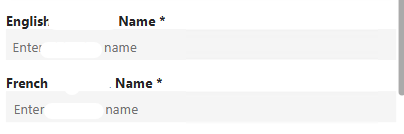
This works bi-directionally that is English → French and French → English.
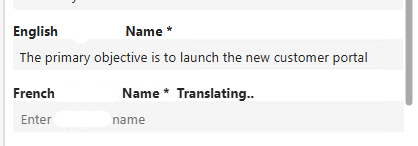
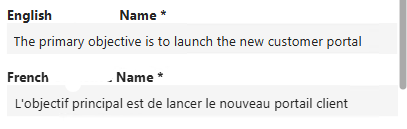
Find the images below for better understanding.
AI Builder Configuration (Prompt-Based Translation)
A custom AI Builder prompt was created instead of using a fixed translation model. This provided greater control over output and behavior.
Prompt Design Principles
The prompt was designed to:
- Detect the source language automatically
- Translate to the opposite language
- Return only the translated text
- Avoid explanations, prefixes, or formatting
Our Prompt
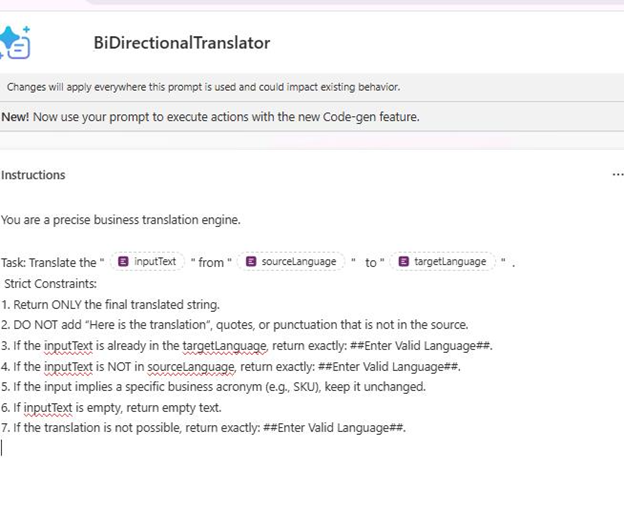
The clean output was critical to ensure the result could be directly assigned to a text field without processing it further.
Canvas App Implementation Details
Using AI Builder Directly in a Canvas App (No Power Automate)
One key design decision in this solution was using AI Builder directly inside the Canvas App by adding it as a Data source, instead of taking it through Power Automate.
How AI Builder Was Integrated
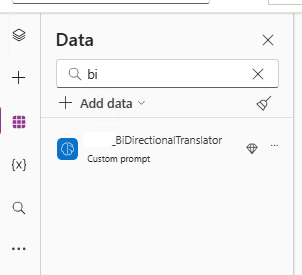
The AI model (BiDirectionalTranslator) was added directly from the Data panel in the Canvas App:
- Open Data pane in the Canvas App
- Click Add data
- Select AI Builder
- Choose the custom prompt model
- The model becomes available as a data source
Please find the reference image below:
Field Setup
Two text input controls were used:
- txtEnglish – English input field
- txtFrench – French input field
Validation Logic
Only one field is required at a time, the users can populate either field, the translated field is auto-filled, User-entered values are never overwritten
Trigger Logic
The translation logic can be triggered on:
- On of Save/Submit button (controlled execution)
- OnChange (real-time translation)
In our case, translation was triggered by delay in typing to make it in real time.
Power FX
TRANSLATION LOGIC
If(!IsBlank(Self.Value) && !locObjectiveNameError,
// Show loader
UpdateContext({ isEnglishTranslating: true});
// Call AI Builder
UpdateContext( {
locTranslatedResult:
BiDirectionalTranslator.Predict(
Self.Value,
If(
Self = txtAttributeEnglishName,
“English”,
“French”
),
{
targetLanguage:
If(
Self = txtAttributeEnglishName, “French”, “English”)} ).Text } );
// Hide loader
UpdateContext({ isEnglishTranslating: false});
// Handle invalid translation
If( locTranslatedResult = “##Enter Valid Language##”,
Notify(“Automatic translation failed. Please verify the text.”,NotificationType.Error,3000),
// Assign result safely (NO overwrite)
If(Self = txtAttributeEnglishName&& IsBlank(txtAttributeFrenchName.Text),UpdateContext({ locFrenchResult: locTranslatedResult }));
If( Self = txtAttributeFrenchName && IsBlank(txtAttributeEnglishName.Text),UpdateContext({ locEnglishResult: locTranslatedResult }) ) ));
Conditional Translation Logic (Conceptual)
- If English field has value AND French is empty → translate to French
- If French field has value AND English is empty → translate to English
- If both fields have values → no translation triggered
This ensures that AI Builder is only called when needed.
End-to-End User Flow
Scenario 1: English Entry
- User enters text in English field, the Canvas App detects French field is empty then AI Builder translates English → French and the French field is auto-populated
Scenario 2: French Entry
- User enters text in French field, the Canvas App detects English field is empty then AI Builder translates French → English and English field is auto-populated
Key Benefits of This Approach
Improved Data Quality
- Consistent bilingual records
- Reduced translation errors
Better User Experience
- No manual translation effort
- No Power Automate calls
- No duplicate data entry
Scalable Design
- Works across multiple screens and forms
- Can be extended to other language pairs
- Reusable prompt
Fully Native Power Platform Solution
- Governed and secure
- No custom connectors
- No external APIs
Best Practices & Learnings
- Avoid real-time translation on every keystroke
- Always ensure AI Builder returns clean output only
- Protect user-entered data with conditional checks
- Centralize translation logic for reuse
- Monitor AI Builder usage to manage capacity
Conclusion
This solution demonstrates how AI Builder can move beyond simple automation and directly enhance user experience inside Canvas Apps.
By combining:
- Conditional execution
- Smart Canvas App validations
- Prompt-based AI Builder logic
This implementation delivers a production-ready bi-lingual data entry experience that is accurate, scalable, and user-friendly.