

Sorting Date & Month Column by Descending in Power bi Matrix Visual
Inkey Solutions, August 5, 20251085 Views
Introduction:
Data analysis in Power BI is immensely powerful, and the Matrix visual is a dynamic tool that allows users to organize and analyze data efficiently. However, when it comes to date and month columns, arranging them in the desired order within the Matrix visual can pose a challenge. In this blog post, we’ll delve into effective techniques for sorting date and month columns in descending order, ensuring your data is presented exactly as you need it.
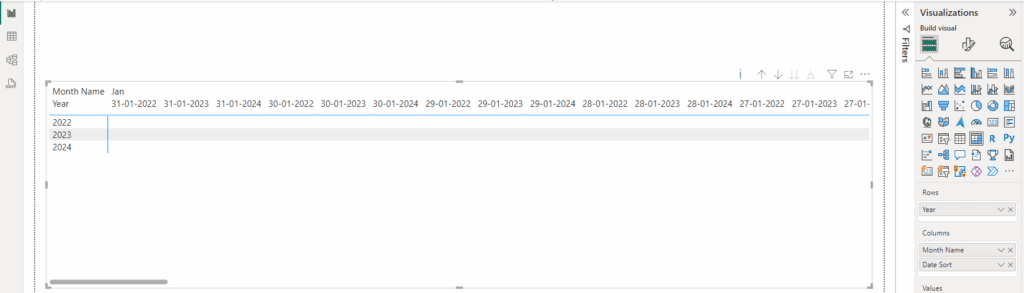
Step 1: Creating a Date Table
Before diving into the sorting techniques, it’s crucial to set up a Date table. This table will play a pivotal role in achieving the desired order. Ensure that the Date table includes columns such as Day, MonthName, and MonthNumber.
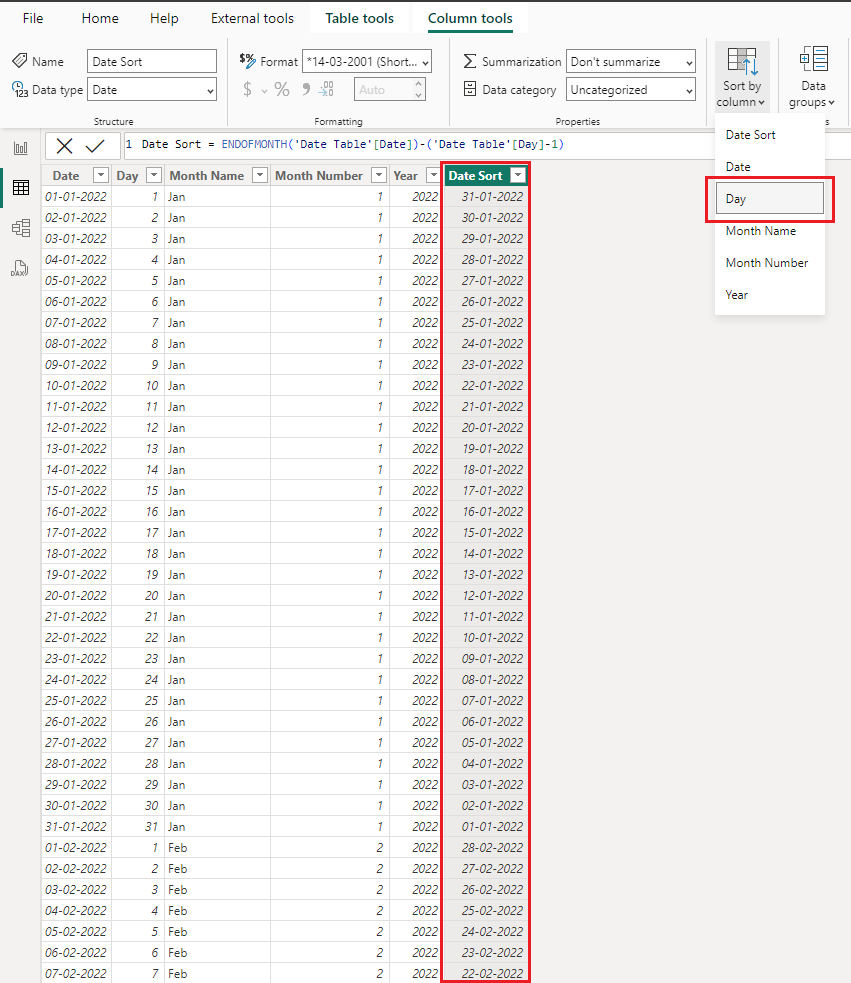
Step 2: Creating the [Date Sort] Column
The first sorting technique involves creating a [Date Sort] column. This column leverages the ENDOFMONTH function and the existing [Day] column to establish the correct sorting order.
[Date Sort] = (ENDOFMONTH(‘Date'[Date]) – (‘Date'[Day]))+1
Step 3: Refining the [Month Sort] Column
The second sorting technique focuses on the [Month Sort] column. Initially, sorting is applied based on the [Month Name] column. However, a clever trick is employed to modify the [Month Sort] column further:
[Month Sort] = INT(
YEAR(‘Table'[Date]) & 13 – MONTH(‘Table'[DateSort])
)
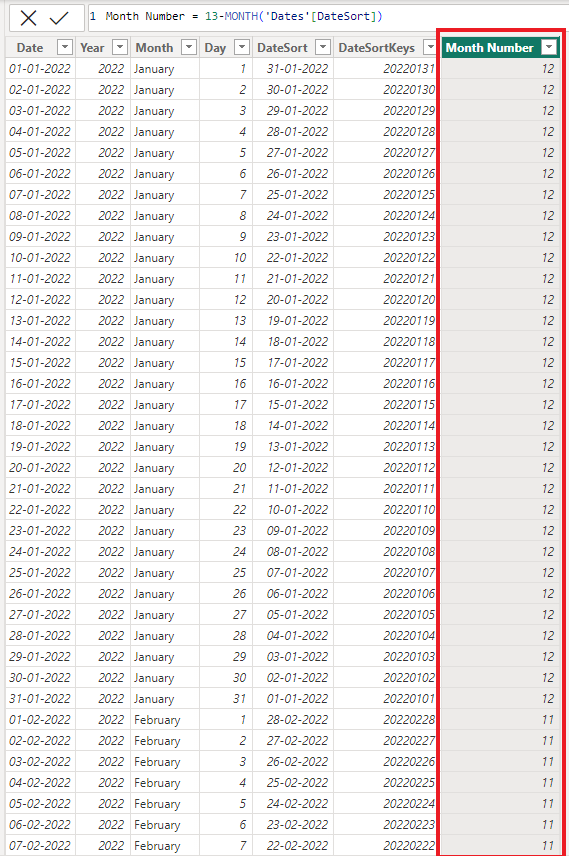
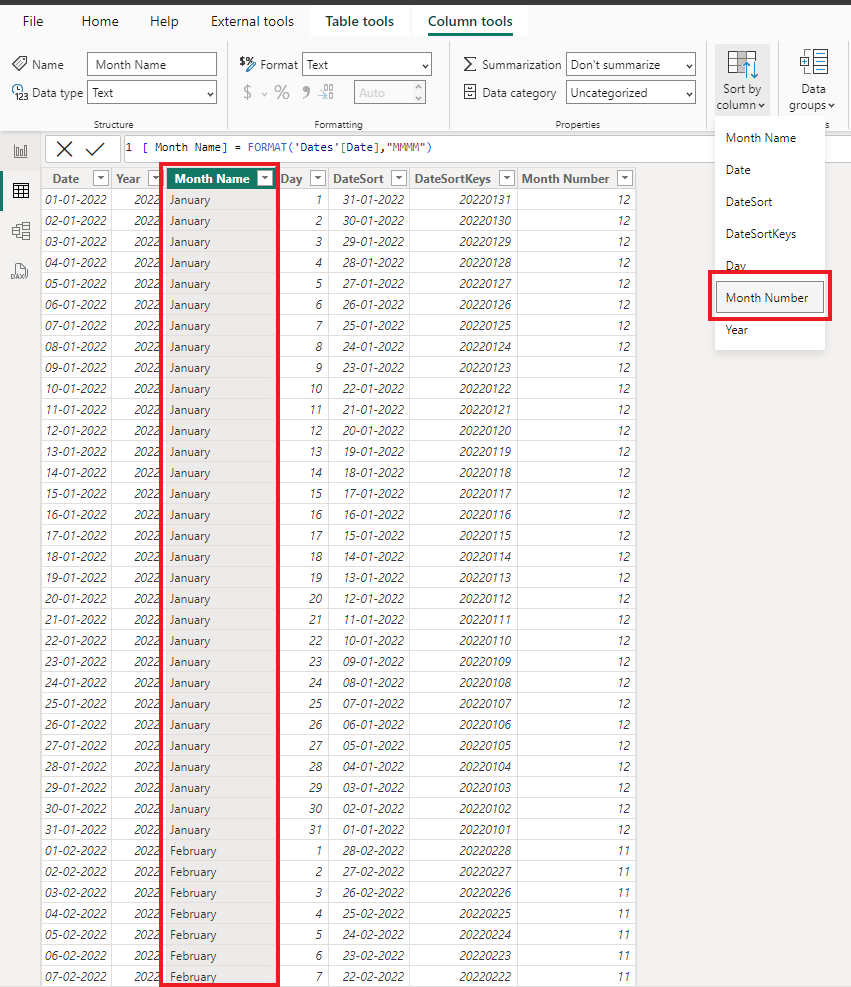
This modification ensures that the months are sorted correctly, even when spanning different years. The combination of YEAR, MONTH, and a bit of mathematical manipulation ensures a robust sorting mechanism.
Conclusion:
Sorting date columns in Power BI Matrix visuals is a crucial aspect of data presentation. By following the steps outlined in this guide, you can establish a solid foundation for organizing your data effectively. The creation of a Date table, coupled with the intelligent use of [Date Sort] and [Month Sort] columns, empowers you to achieve the desired descending order seamlessly.