
How to Combine Service Shipments into a Single Invoice in Microsoft Dynamics 365 Business Central
Inkey Solutions, May 8, 202653 Views
Introduction:
Microsoft Dynamics 365 Business Central is constantly improving as an all-in-one business management solution. With the 2025 Release Wave 1 update, Microsoft has introduced a powerful new feature that brings service and sales invoicing workflows even closer. This feature, called Combine Service Shipment, allows users to consolidate multiple un-invoiced service shipments into one or more invoices, simplifying billing and improving efficiency.
Business Value:
The new Combine Service Shipment feature enables businesses to streamline their invoicing process by gathering multiple un-invoiced shipments and turning them into invoices in bulk. This is especially helpful when dealing with high volumes of service orders, as it reduces manual effort, ensures consistency, and shortens the billing cycle. Businesses can now enjoy improved cash flow, simplified invoicing, and better customer experience.
Requirement:
How can you utilize this new feature in Business Central?
Prerequisites:
- Access to Microsoft Dynamics 365 Business Central
- Appropriate permissions to manage service orders and invoices
- Ensure that the Combine Service Shipment toggle is turned on in the Customer Card
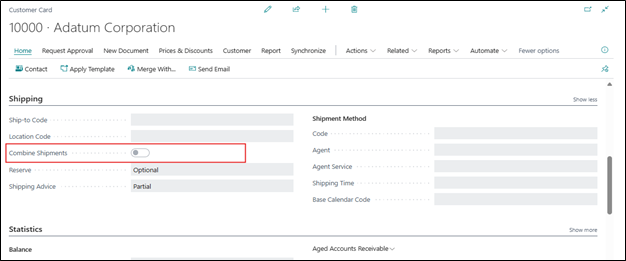
Before this update, Microsoft only offered this functionality for the Sales module. With the latest update, it’s now available for the Service module as well. Previously, users can only find this “Combine Shipment” option under the Shipping Fast tab of the Customer card.
Solution (Implementation Steps):
-
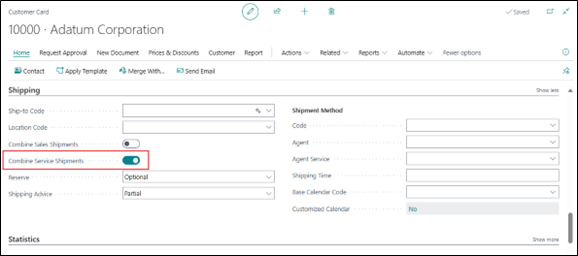
- Go to the search icon in the top right corner and search for Under the Shipping Fast Tab, find the “Combine Service Shipments” toggle and turn it on.
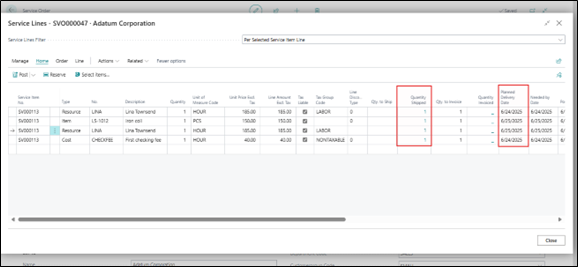
- Click on the Tell Me icon and Search for “Service Order”. Find the service order that has more than one posted shipment document and an unposted invoice.
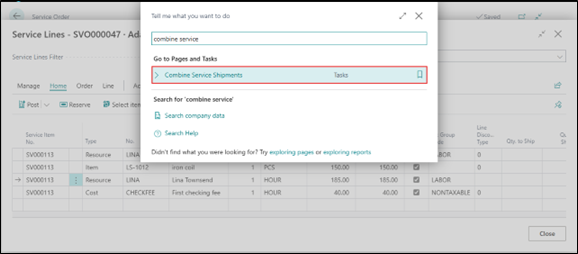
- Click on the Tell Me icon and Search for “Combine Service Shipments”. Open the related link to access the batch job request page.
- On the Combine Service Shipments batch job page, enter the following details and Click OK, the invoice will be automatically created.
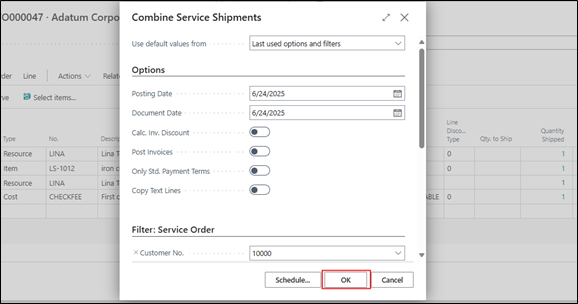
Field Name Description Required? Posting Date Enter posting date for the invoices that the batch job creates. Yes Document Date Enter document date for the invoices that the batch job creates. Yes Calc. Inv. Discount Calculate invoice discounts automatically. If Calc. Inv. Discount checkbox is selected on the Sales & Receivables Setup page, the amounts are always calculated automatically. No Post Invoices Post invoices immediately. No Only Std. Payment Terms Only include shipments with standard payments terms. If you select this option, you must manually invoice all other shipments. No Copy Text Lines Copy the manually added text on the shipment lines to the invoice. Automatically inserted standard or extended texts are always copied. No
- Go to the search icon in the top right corner and search for Under the Shipping Fast Tab, find the “Combine Service Shipments” toggle and turn it on.
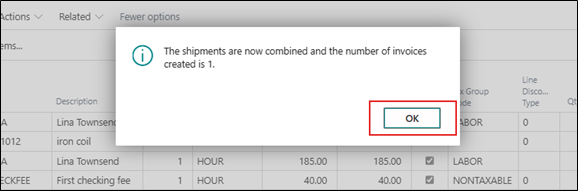
- The system will display successful message of creation of invoice. Click on Ok.
- Click on the Tell Me icon and Search for “Service Invoice”. Open the related link to Open the Service invoice page
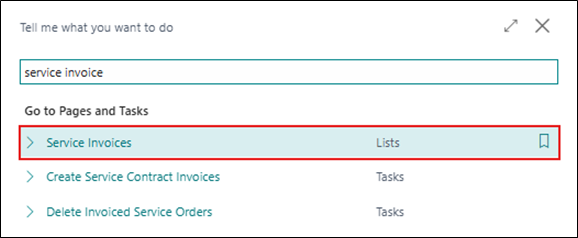
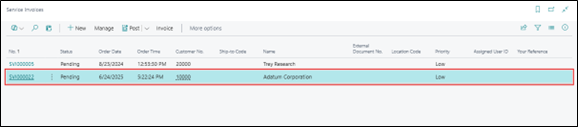
- Here in the Service Invoice List page user can see the Newly created invoice.
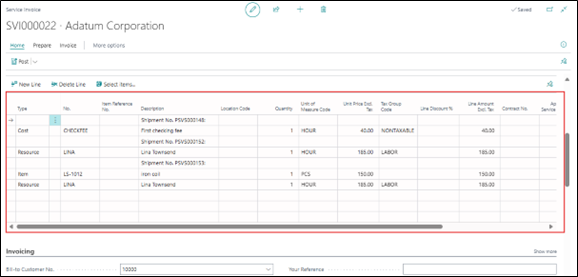
- The invoice will include all posted service shipment lines.
Important Note:
- Only service orders with the “Combine Service Shipments” flag enabled will be processed.
- If the Post Invoices checkbox is not selected, you must post the invoices manually later.
- User cannot combine ad hoc service orders with those linked to contracts in a single invoice. Separate invoices are required.
- The task doesn’t mark the shipments that are retrieved and therefore creates new combined shipments every time user run it. If user want to repeat the task, already created invoices must first be deleted.
Delete Invoiced Service Orders (Optional)
After invoices are created, the related service orders still exist even if fully invoiced. To delete them:
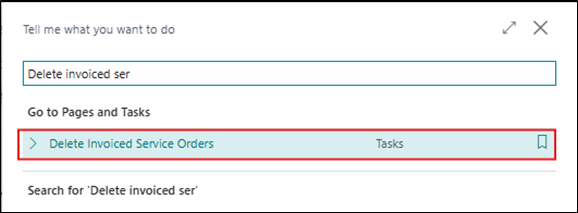
- Click on the Tell Me icon and Search for ” Delete invoiced Service Invoice”. Click on related link to run batch job task to delete orders in bulk.
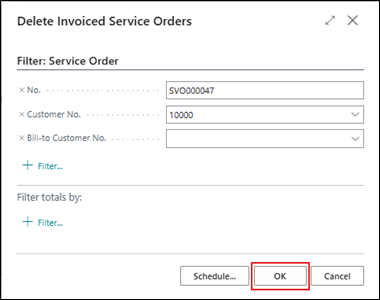
- Use filters as needed or leave the No. filter blank to remove all invoiced service orders. Click OK. This will delete the service order.
Conclusion:
The Combine Service Shipment feature in Microsoft Dynamics 365 Business Central is a game-changer for service-driven organizations. It simplifies the invoicing process, saves valuable time, and enhances accuracy in billing. By reducing manual consolidation of service shipments and enabling bulk invoice creation, businesses can operate more efficiently and improve their customer billing experience.