

From Prompt to Flow: Generating Power Automate Workflows Using AI
Inkey Solutions, May 19, 202647 Views
Problem Statement
Creating flows in Microsoft Power Automate using the traditional approach can take a lot of time. Developers need to manually find connectors, configure conditions, write expressions, and test the flow multiple times to make sure it works correctly.
With the new AI prompt feature, developers can simply describe their automation requirement in natural language, and Power Automate can automatically generate the basic flow structure. This helps reduce development time and simplifies the flow creation process.
Sample Problem Statement
Example: When the main phone number of an Account changes, the related Contact records still contain the old phone number. This creates inconsistent data and may lead to communication issues.
To solve this problem, an automated solution using Microsoft Power Automate and Microsoft Dataverse is required. The flow should automatically update the Business Phone field of all related Contacts whenever the Account Main Phone number is modified, ensuring that contact information remains consistent across the system.
Fix Prompt Template for Power Automate Flow
Create a Power Automate cloud flow using Microsoft Dataverse with the following requirements:
- Trigger
- Trigger the flow when a row in the <Primary Table> table is added, modified, or deleted.
- Scope: <Organization / Business Unit / User>
- Trigger Condition
- Check if the <Field Name> field in the <Primary Table> has been updated.
- Retrieve Related Records
- Use the Dataverse “List Rows” action.
- Table: <Related Table>
- Filter Query:
- <Lookup Field in Related Table> eq <Primary Table Row ID>
- Loop Through Records
- Use an “Apply to Each” loop to iterate through all retrieved rows from the <Related Table>.
- Update Related Records
- Inside the loop:
- Use the “Update Row” action.
- Table: <Related Table>
- Row ID: <Related Record ID>
- Update the field:
- <Target Field in Related Table> = <Source Field from Primary Table>
- Inside the loop:
- Expected Outcome
- Whenever the <Field Name> in the <Primary Table> is modified, all related <Related Table> records will automatically have their <Target Field> updated with the new value.
Steps to Solve this :
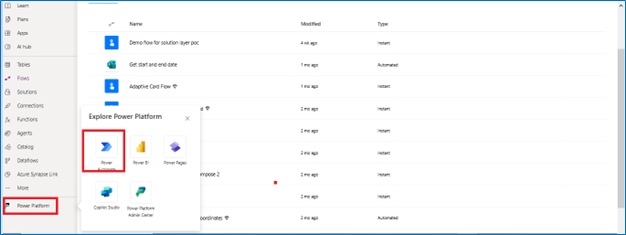
Step 1: Open the power automate flow for the system
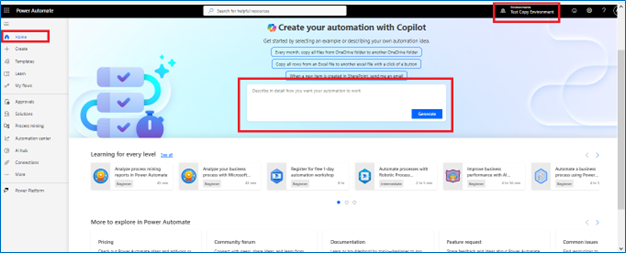
Step 2: Here will open the power automate flow home page and there we can see the box where we can add the prompt based on that we can create a flow based on the requirement
Step 3: Add the prompt and click the generate button
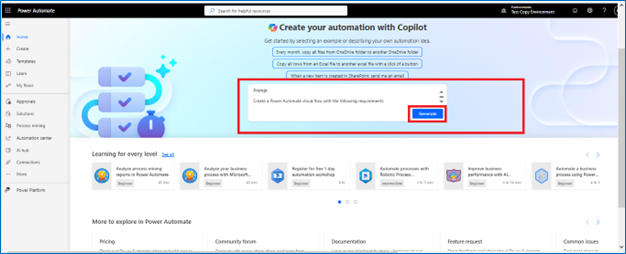
Step 4: Prompt use for this problem
- Create a cloud flow in Dataverse.
- Trigger the flow when a row in the Account table is modified.
- If the Account Main Phone field is updated, retrieve all related Contacts where the Contact’s Parent Account equals the Account that was modified.
- Loop through each contact and update the Business Phone field with the Account Main Phone value.
- The flow should ensure that whenever an Account phone number changes, all related Contacts have the same phone number.
Step 5: Will see the structure of the flows
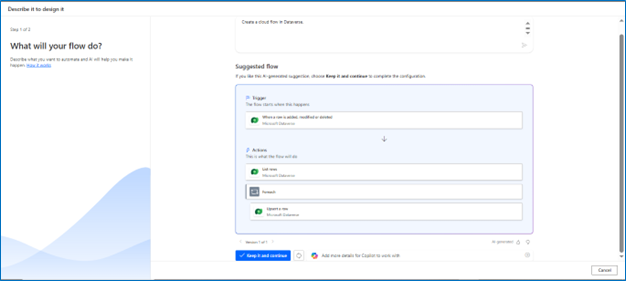
Step 6: Validate the structure provided from the prompt
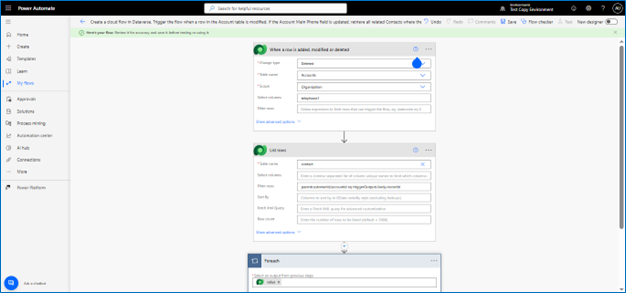
After that based on structure if changes are being required need to make changes in the structure
Overall Benefit
Using automation ensures consistent data, faster updates, and improved operational efficiency, while significantly reducing manual work.
I hope this helps!