

Never Use an Outdated Report Again: Version Tracking in Power BI
Inkey Solutions, May 22, 202634 Views
Introduction
In Power BI development, maintaining version control of reports is essential to ensure that all changes are applied to the latest version only. Without proper tracking, developers may unknowingly work on outdated reports, while stakeholders may end up reviewing or making decisions based on older Report, leading to inconsistencies and rework.
To address this, a dynamic version timestamp can be added to the report, such as:
Report as of: 4/13/2026 5:30:00 PM
This timestamp can be displayed within the report (typically at the bottom of the page) to help both developers and stakeholders quickly verify whether they are working with the most recent version of the report. Additionally, before deploying the report, developers have the flexibility to select a specific version timestamp from six available time slots, each spaced at a 30-minute interval from the current time, ensuring controlled and consistent version tagging.
Below are the steps to implement version tracking using Power Query and DAX in Power BI.
Step: 1
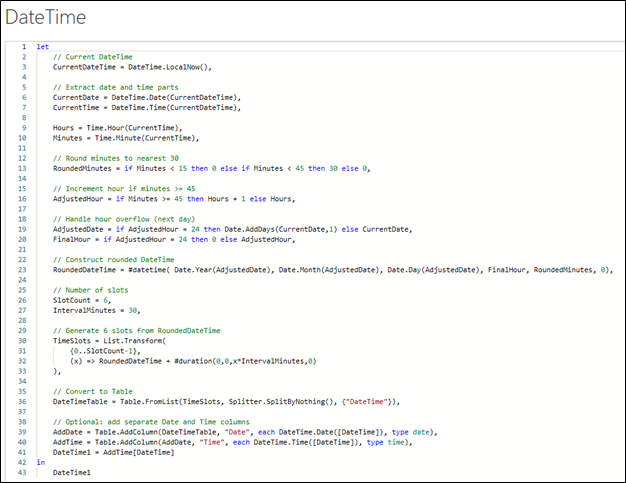
This query generates the current DateTime and rounds it to the nearest 30-minute interval, then creates 6 future time slots.
Image 02
Explanation:
- Gets current system time
- Rounds it to nearest 30 minutes
- Generates 6 time slots
- Converts them into a usable table
Step 2: Create Parameter
This parameter stores the selected version timestamp.
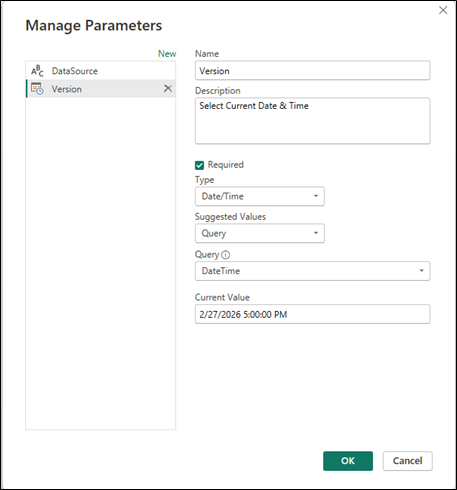
Explanation:
- The parameter is used to control and select the report version timestamp
- It allows developers to choose from predefined time slots instead of relying on automatic refresh time
- This ensures consistency, as the version remains fixed until intentionally changed
Step 3: Create Version Table
This step ensures that the version value is available as a table for reporting.
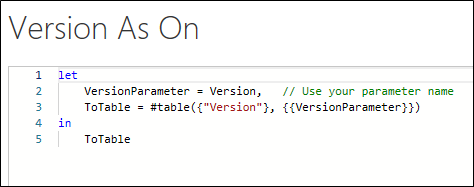
Explanation:
- Converts the selected parameter value into a table format
- Enables the version to be used in visuals and measures
- The version does not update automatically during dataset refresh in Power BI Desktop
- It updates only when a new timestamp is manually selected in the parameter
Step 4: Create Measure
This measure formats and displays the version in a readable way.
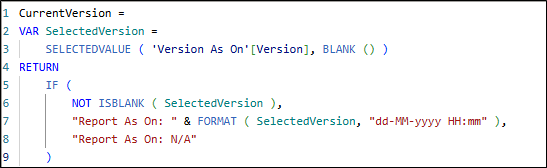
Explanation:
- Retrieves the selected version using SELECTEDVALUE, ensuring a single value
- Applies conditional logic to display the version only when selected
- Formats the timestamp into a readable format (dd-MM-yyyy HH:mm)
- Dynamically updates based on parameter selection
- Shows “N/A” when no version is selected
Step 5: Select Version for Report Before Deployment
After creating the measure, you need to manually select the desired timestamp from the parameter in Power BI Desktop.
Steps:
- Go to Home → Transform Data → Edit Parameters
- Select the Version parameter
- Choose the desired Date Time value from the available options
- Click OK to apply
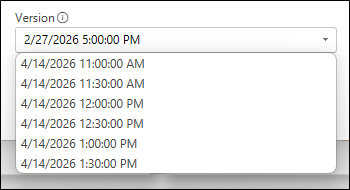
This selected value will now be reflected in your report through the measure.
Explanation:
- Allows you to control which version timestamp is displayed
- This selection is manual and does not change automatically on refresh
- Ensures developers can explicitly set and verify the report version
Final Step: Add it to the report
Place this measure in a Card visual at the bottom of your report.
Conclusion
Tracking report versions may seem like a small addition, but it plays a crucial role in ensuring that developers and stakeholders always work with the most up-to-date Report. By using Power Query to generate dynamic timestamps and combining them with parameters and DAX measures, we can create a simple, fully native solution within Power BI. This approach helps eliminate confusion, reduces the risk of working on outdated reports, and adds a layer of reliability and professionalism to the overall reporting process.