Data Migration Between CRM Environments Using SSIS and KingswaySoft
Overview:
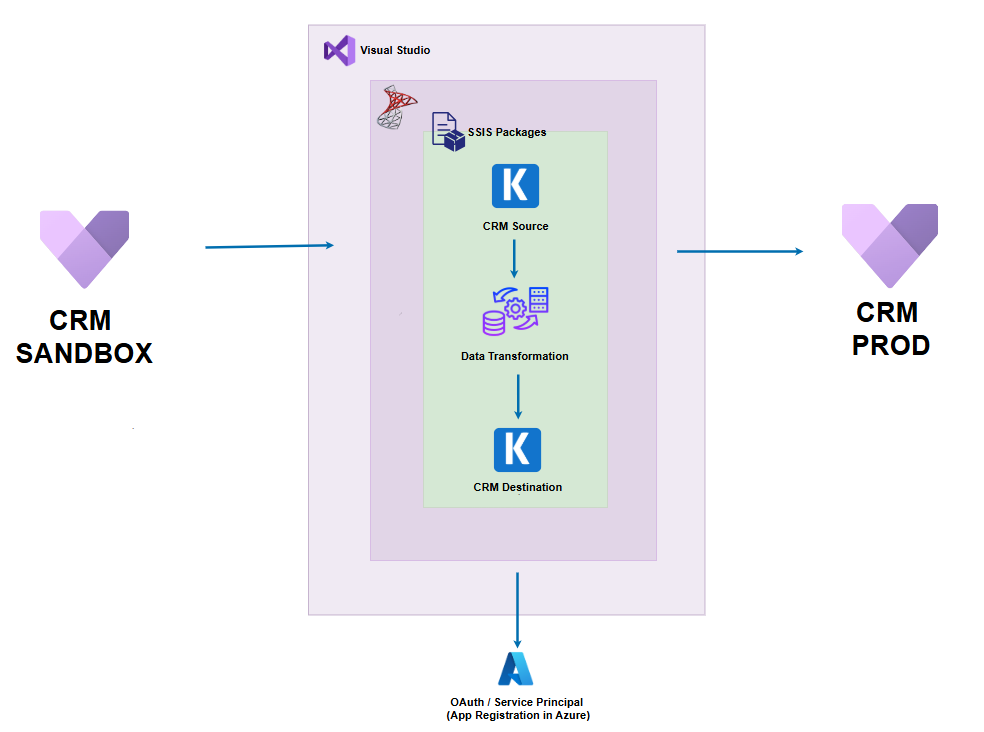
Migrate data from a CRM (Sandbox) to another CRM environment (Production) while preserving data integrity, entity relationships, and system metadata using SQL Server Integration Services (SSIS) and KingswaySoft SSIS Integration Toolkit for Microsoft Dynamics 365.
Key Requirements:
- One-time full data migration.
- Migrate selected entities (e.g., Contact, Account, Activities).
- Maintain GUIDs to preserve relationships and historical consistency.
- Map custom fields and manage alternate keys.
- Ensure minimal downtime and data quality post-migration.
Tools & Technologies used:
- Microsoft SQL Server Integration Services (SSIS)
- KingswaySoft SSIS Integration Toolkit for Dynamics 365
- Visual Studio for package development
Migration Design & Approach:
Step 1: Environment Preparation
- Set up CRM connections in SSIS using KingswaySoft CRM Connection Manager for both source (Sandbox) and Destination (Prod).
- Use appropriate security roles and service principal/application user authentication if needed.
Step 2: Entity & Data Selection
- Identify scope of entities (e.g., Contacts, Accounts, Opportunities).
- Handle lookups and N: N relationships by ensuring related entities are migrated in proper order.
- Choose between:
- Full Data Load
- Incremental (using ModifiedOn, CreatedOn filters)
Step 3: Data Flow Development
- Use CRM Source Component to extract data from Sandbox.
- Apply transformations in Data Flow Task (e.g., data cleansing, null handling).
- Use CRM Destination Component to load into the target environment.
- Configure:
- Upsert based on alternate keys or GUIDs
Step 4: Error Handling and Logging
- Redirect error rows into error output.
- Maintain SSIS log files.
Step 5: Testing and Validation
- Run test loads on subsets of data.
- Validate data consistency, counts, and relational integrity.
- Perform post-load comparison using FetchXML or advanced find queries.
Challenges faced:
During the SSIS package development using KingswaySoft and native SSIS components, several common issues were encountered:
- Metadata Mismatch Errors: Changes in source column names were not automatically reflected in downstream tasks, causing validation errors. The workaround was to manually refresh metadata or recreate the affected components.
- Flat File Truncation Issues: When working with flat files, truncation errors appear due to incorrect length or Codepage settings. Adjusting column lengths and modifying the Codepage in the connection manager resolved these issues.
- Manual Column Setup in Script Component: Script tasks required manually defining columns and their data types, adding development time and increasing the potential for errors.
- Column Name Conflicts in Script Task: Columns with problematic names (e.g., id_src) caused script execution issues. This was resolved by using Output Alias to rename such columns before referencing them in code.
Key Learnings and Best Practices:
- Always migrate system users and teams first to avoid lookup issues.
- Use alternate keys or GUIDs to support upserts instead of insert-only logic.
- Split large datasets into batches (using paging or filters) to avoid timeouts.
- Use SSIS variables and configuration files for dynamic connections and reusable components.
- Maintain detailed migration logs for traceability.
Outcomes:
- Successful migration of over [X] records across [Y] entities.
- Zero critical data loss with 100% post-load verification.
- Reusable and modular SSIS packages for future migration or synchronization.
Conclusion:
This case study demonstrates how leveraging SSIS and KingswaySoft provides a powerful, flexible solution for CRM data migrations, especially in cross-environment scenarios like Dev to UAT or Prod. With careful planning, structured error handling, and relationship-aware entity loading, enterprise-grade CRM migrations can be executed with high accuracy and efficiency.